This is an old revision of the document!
Email Alert Setup Guide (EDM)
Gmail setup
This section describes how to set up your email settings for Gmail
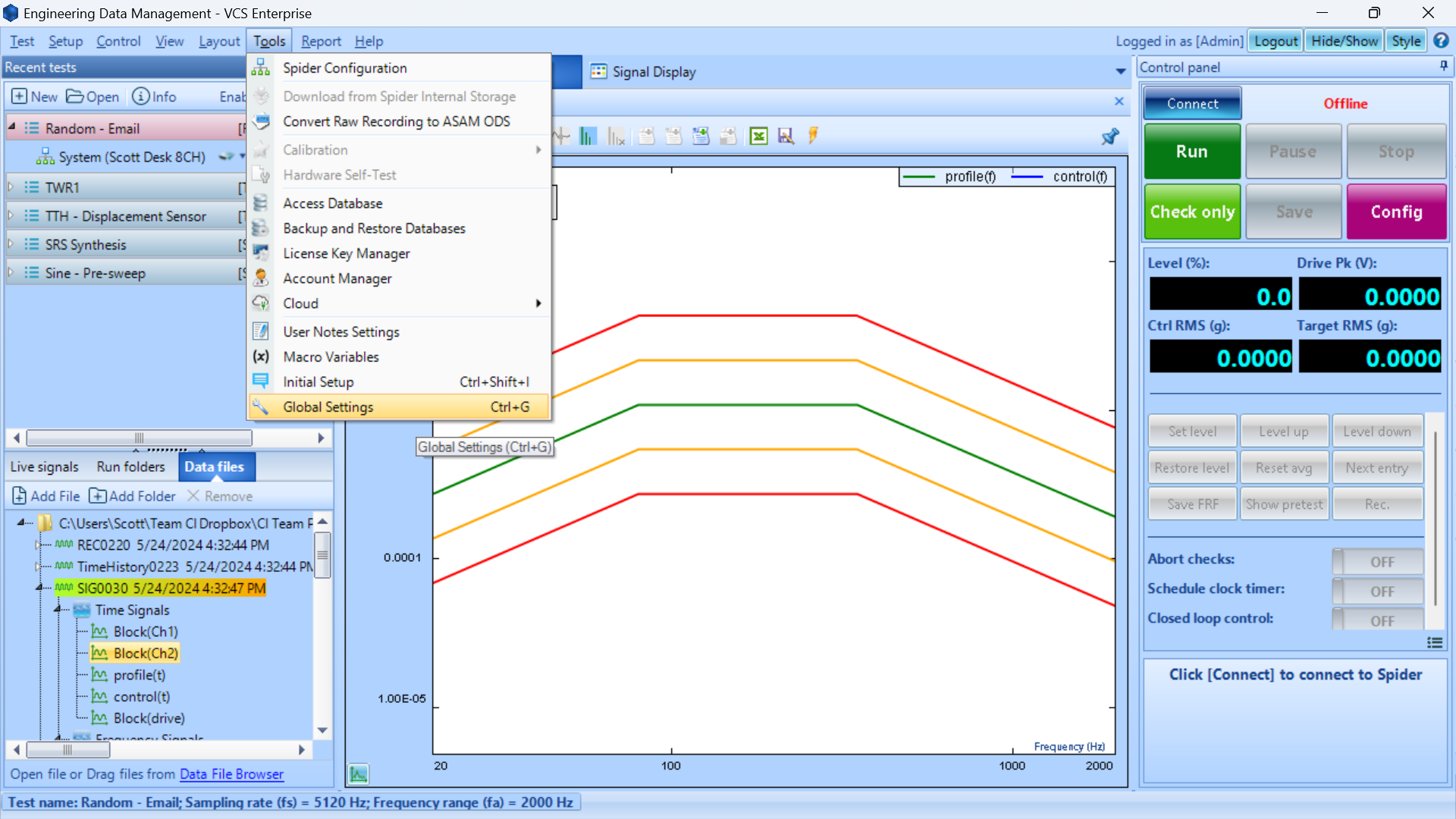
- Navigate to Tools > Global Settings or click Ctrl+G
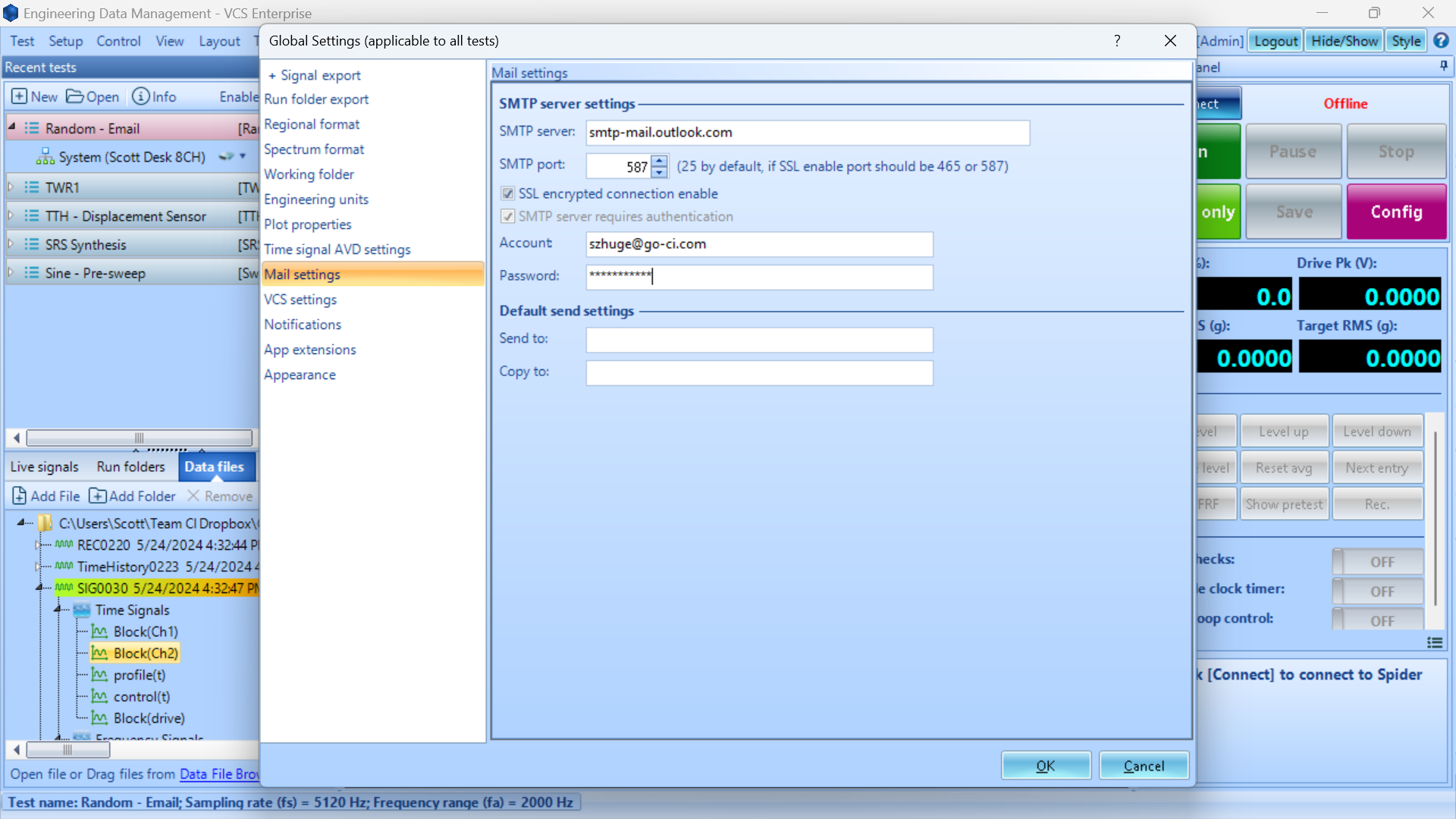
- Go to Mail settings
- Set the related parameters for Outlook (see POP, IMAP, and SMTP | Gmail):
- SMTP server: smtp-mail.outlook.com
- SMTP port: 587
- Enable SSL encrypted connection enable
- Note: SSL encrypted email sending can only be done through PC (Spider cannot send SSL encrypted emails in black-box mode)
- Account / Password: your email and App Password
To create an App Password for Gmail, follow these steps, as it replaces the email’s password for third party access for better security.
- Sign into your Google Account
- Turn on 2 step verification
- Go to the App Password page: App Password)
- Add new App Name such as EDM
- A 16-char password will display once (you will not be able to access this code again)
Outlook (Office365) email setup
This section describes how to set up your email settings
- Navigate to Tools > Global Settings or click Ctrl+G
- Go to Mail settings
- Set the related parameters for Gmail (see POP, IMAP, and SMTP settings for Outlook.com):
- SMTP server: smtp.gmail.com
- SMTP port: 587
- Enable SSL encrypted connection enable
- Note: SSL encrypted email sending can only be done through PC (Spider cannot send SSL encrypted emails in black-box mode)
- Account / Password: your email credentials
Event Action rules
This section describes how to send emails
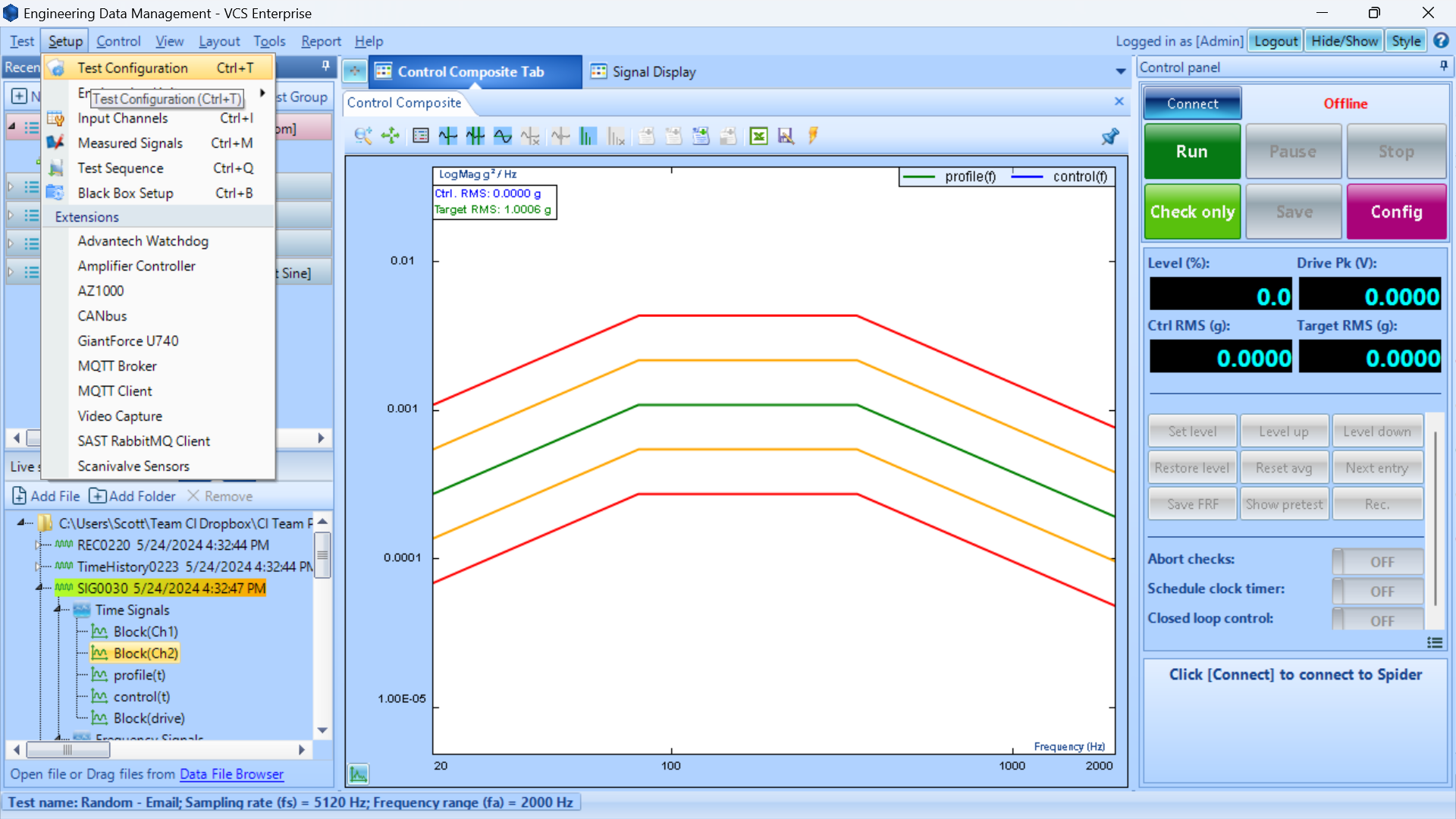
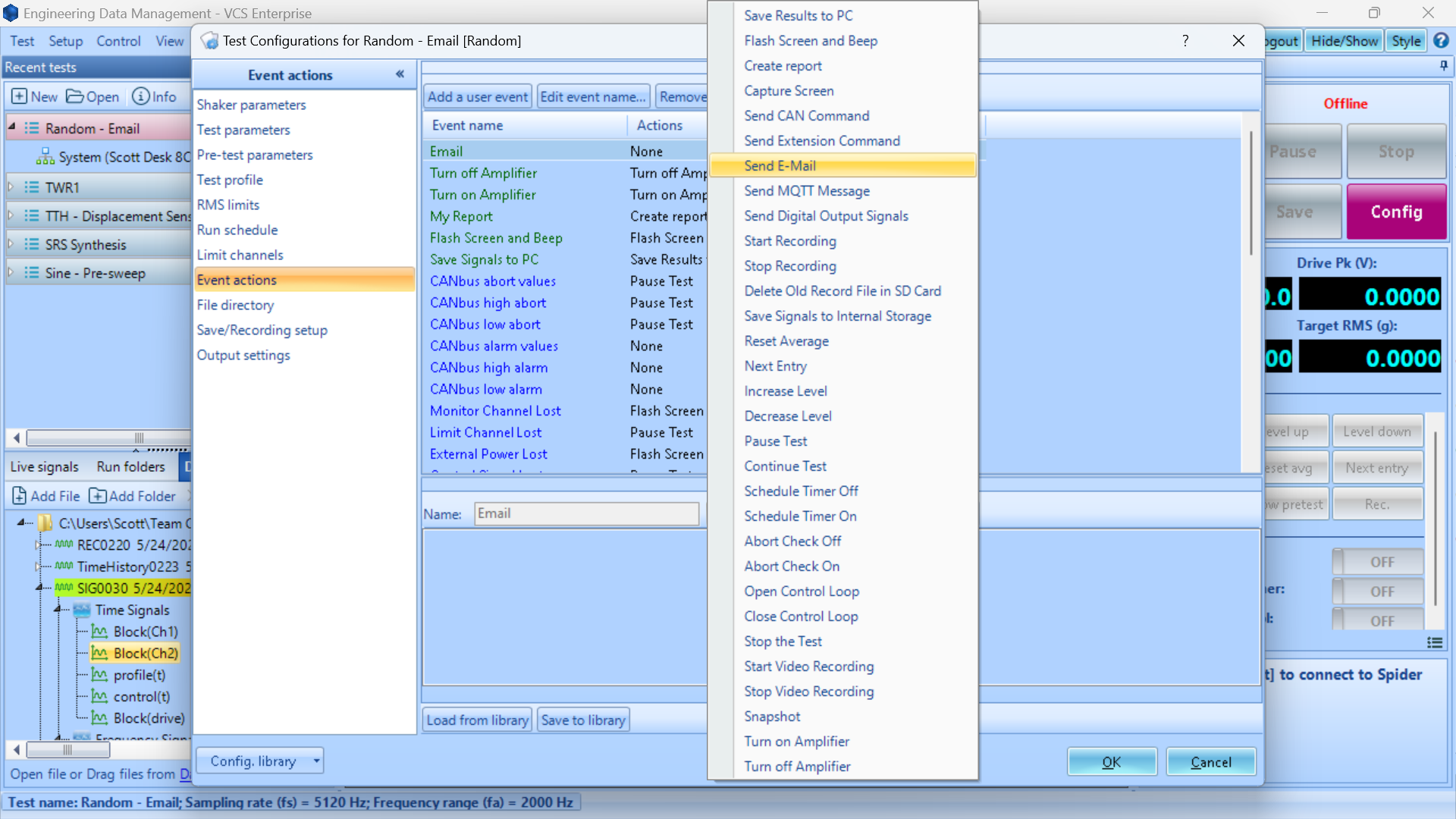
- Open Config / Setup > Test Configuration or click Ctrl+T
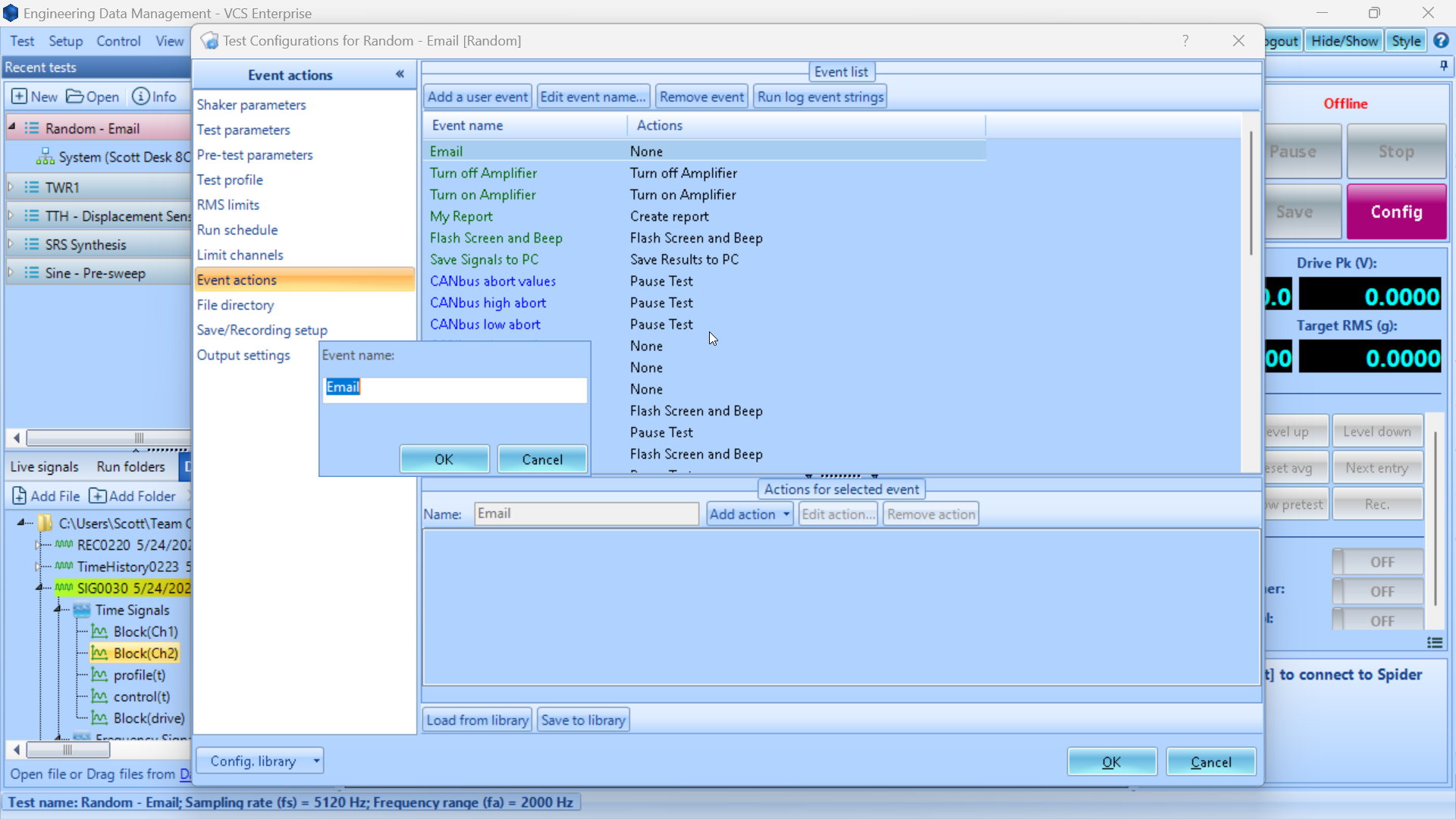
- Go to Event actions
- Click Add a user event and assign it a name such as Email
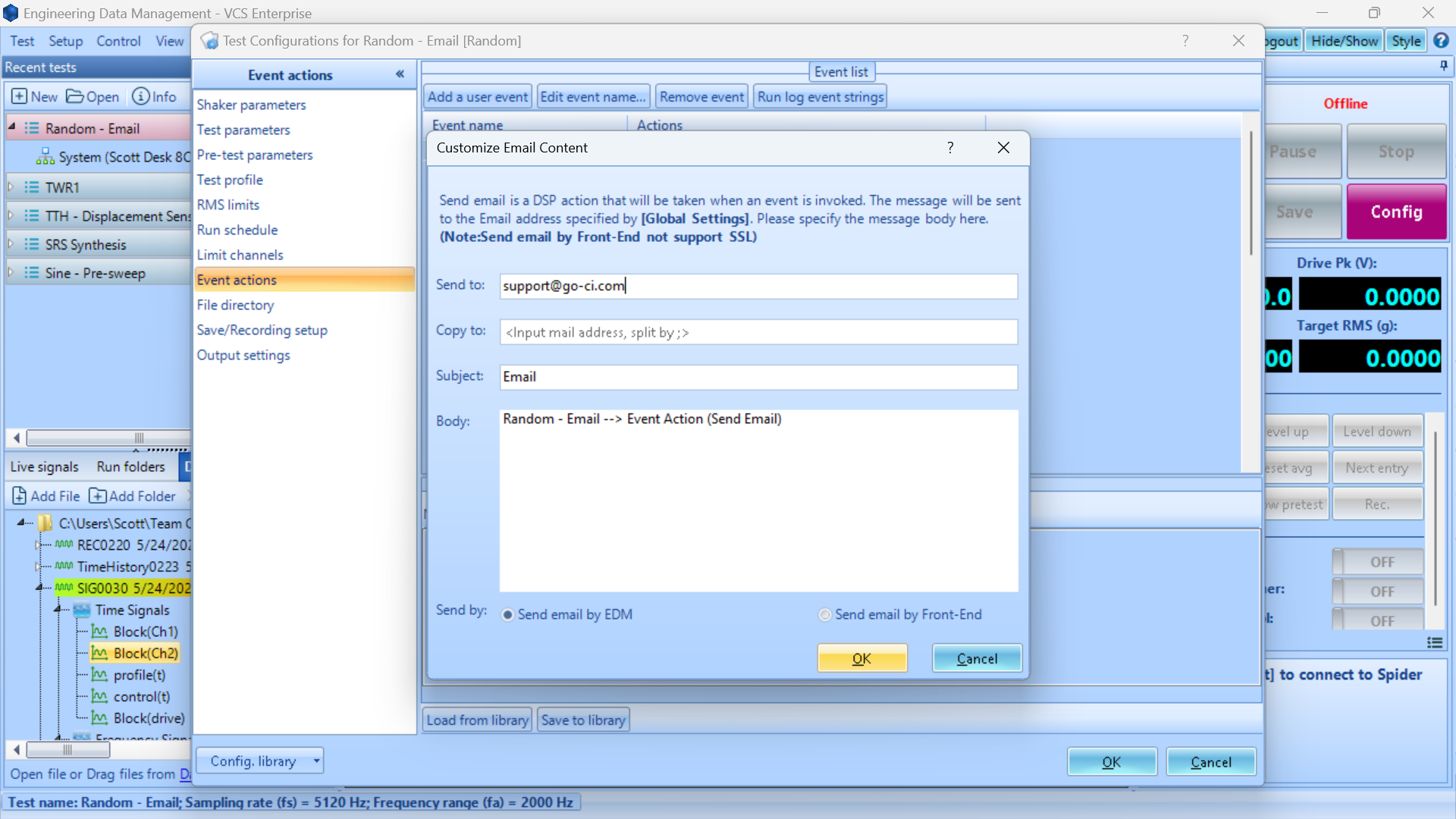
- Select the Email event in the dropdown and fill out the relevant email fields
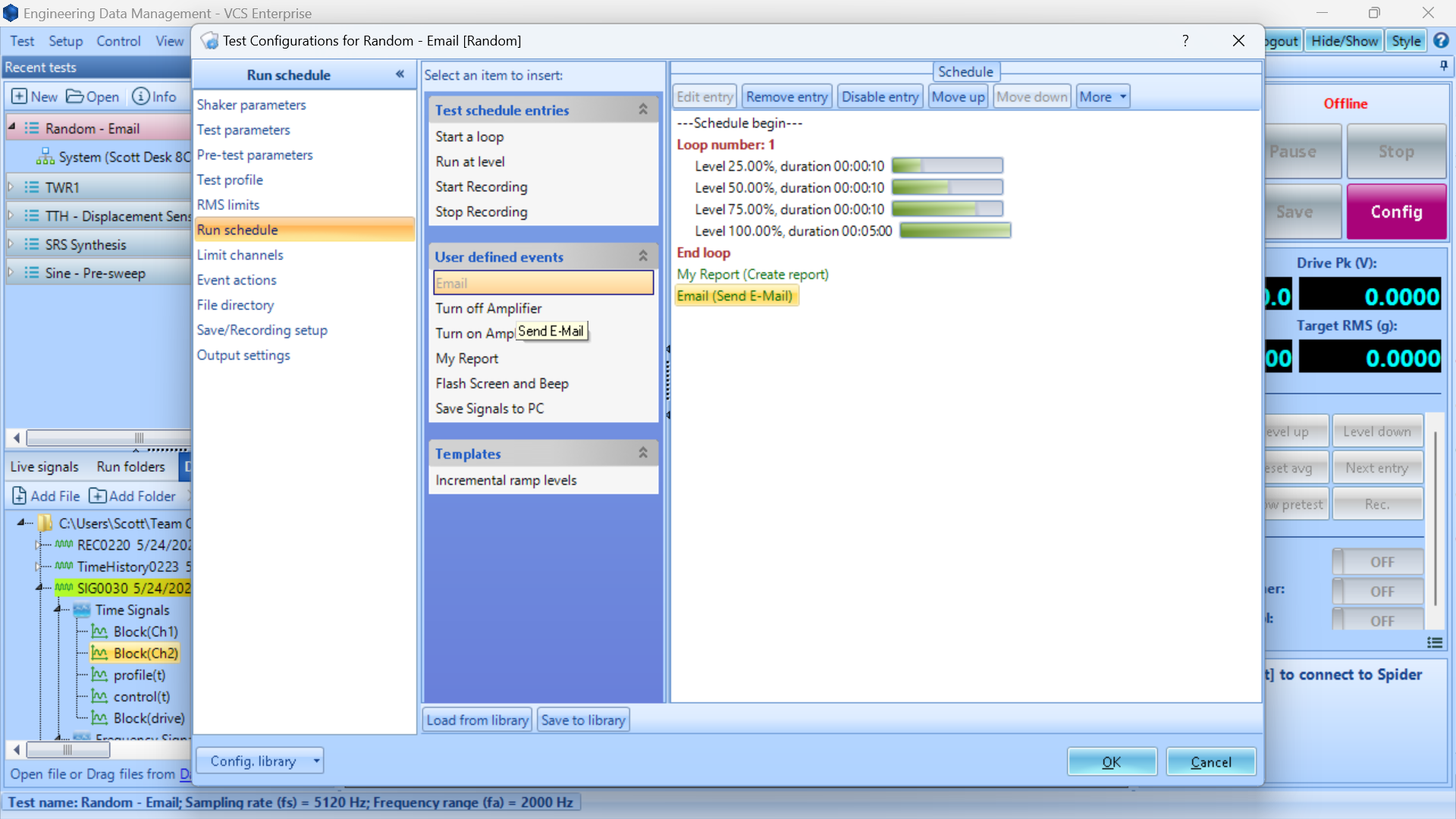
- Edit the Run schedule to send email where relevant